| Team Tab |
|
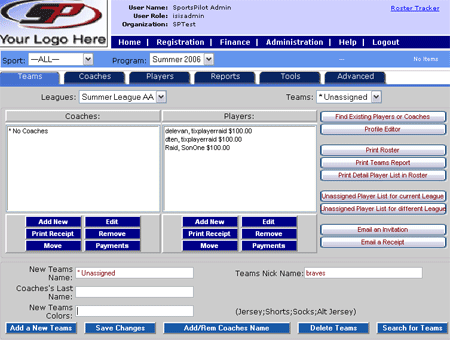 New Team Name
Creating a new team can be performed at the Administration/Teams section, or on the Registration Interface as shown in the figure to the right. The Teams tab offers the capability to add a team, associate the coaches last name, and record the teams colors plus its nick name.
Adding a coaches last name is optional. An administrator can display a coaches last name next to the team name using this feature. When a user adds a coach the system does not automatically show the coaches last name alongside the team name. The last name must be entered and saved in this field.
OR
New Team Colors A team's uniform colors are captured in this field. In some cases, colors are required when turning in rosters; therefore, the information is tied to and displayed in a couple roster reports. They should be separated by semi colons and in the order of Jersey, Shorts, Socks, and Alt. Jersey. 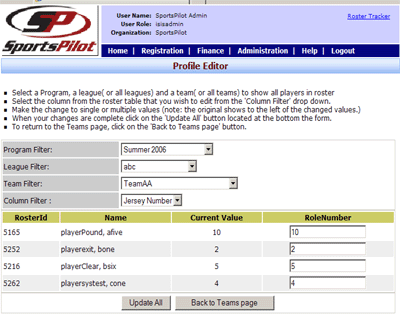 Profile Editor Profile Editor
The Profile editor offers quick data entry for three commonly used fields.
Declaring a player/coach 'Secondary' allows the system to recognize these individuals who play on two teams, and counts them once when reconciling how many registrants are participating in the current season. This particular feature is directed to organizations in the North Texas Region. To avoid the painful task of entering jersey numbers and birth certificates one by one, these options are also available within the column filter. Print RosterThe Print Roster report displays basic coach and player information. Coaches can also print this report when he/she logs into their Member Profile to manage a team roster. This report can not be modified and fields can not be replaced or added. If an organization requires a specific roster report, please contact the sales department for more information on creating customized reports. Print Teams Report This report captures a player and coach name, address, phone number(s), and important notes for a participant registered to a particular team. The Print Teams Report is useful for coaches to quickly locate parent/guardian and emergency contact information for their players. Coaches have access to this report when he/she logs into their Member Profile to manage a team roster. Print Detail Player List in Roster This detailed report displays all the fields that are available on the player form. Viewing a player's information on one page may assist in creating teams in a timely manner. This report prints out all the players of the team. Specific players can not be selected and printed off. Print Medical Release Form An organization can supply a medical release form for parents/guardians to sign. Signing this release gives consent for medical care to a player in case of an emergency. Coaches have access to this report when he/she logs into their Member Profile to manage a team roster. If your organization requires a medical release form, please contact your account manager to make that feature available for you. |