| Miscellaneous Functions |
|
|
Player Positions This feature allows administrators to enter positions for a specific sport and is able to capture this information when a player registers. To add a new position: 1. Select the Create New Position button 2. Enter the Position Name, Position Abbreviation, and select from the list of Sports. 3. Save The list will continue to populate as more entries are added. Once the Position field is included on the form, it will be displayed as a drop down list as an option for registrants to select from. Schools School is a popular field as many organizations use the participants' school to form teams. This feature allows administrators to enter all schools within or around the organizations city or town for registrants to choose from. To add a new school: 1. Select the Create New School button 2. School Name is the only required field. Enter physical address, phone, and school type for your records. 3. Save The list will continue to populate in alphabetical order as more entries are added. Once the School field is included on the form, it will be displayed as a drop down list as an option for registrants to select from. 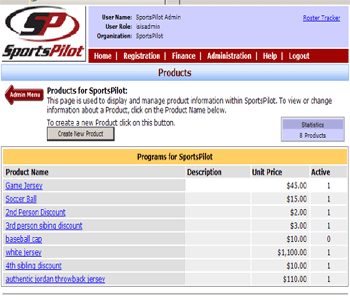 Products The back office defines products as income or expense items an organization wishes to offer a player/coach to purchase at the same time of registering for a league. Uniforms, canning fees, member fees, donations, and special discounts, can all be created as products.
Products are displayed at the bottom of a player/coach form
as optional items to choose from, or as a required product
that automatically calculates a total for checkout.
Please refer to the section
How to Add Products as Items and Sibling Discounts.
An invoice is created for those
registrants that selected to check out using an
alternate payment method , such as Check by Mail.
Once the payment is received via mail, administrators are
urged to come to the Invoice section to apply payment to the
reserved registration. This is important as the list
of invoices can get extremely long if it is not kept up with
or monitored. Invoices are can also be updated from
the
payment screen at the Registration Interface. On the other hand, sometimes if one receives an error, they may go back through to complete a successful registration. If this scenario occurs, the pending invoice will be updated as paid and drop off the list.
|